
Building document editing capabilities from scratch involves overcoming a long list of technical challenges. A SaaS team must parse OOXML, preserve formatting, and support real-time collaboration. Every file conversion workflow needs its own engine on top of that.
The challenge becomes even greater when an AI agent needs to read and edit documents directly. Building an editor for people is fundamentally different from building a document engine that an LLM can access through tool calling. It also introduces a new data exposure risk, because document content may need to travel beyond the editor and be processed elsewhere.
Thinkfree AI Office SDK is an embeddable Office document engine built for AI-powered SaaS and enterprise applications. To address this challenge, organizations can deploy the SDK using either the Self-hosted or Hosted API model.
This article answers six questions that SaaS product teams run into when planning AI-powered document editing. Each answer is based on how Thinkfree AI Office SDK handles documents for AI.
With a single call to sdk.registerWith(), an AI agent registers the entire set of Thinkfree Office editing tools into its own tool registry. From there, the LLM can operate on the document directly through tool calling.
Thinkfree provides a web-based office editor and SDK with a built-in Chat UI that accepts document commands in natural language. Users can create and edit documents without learning a new interface. Organizations only need to connect their existing LLM or sLLM to the Chat UI.
Organizations that already operate their own AI agent and chat interface can connect it directly instead of using the built-in Chat UI. Calling sdk.registerWith(myAgent.modelContext) registers the full set of Thinkfree Office editing tools in the agent’s tool registry. The AI agent can then invoke those tools through its existing tool-calling workflow without additional integration. execution results are returned in the standard MCP format ({ content: [{ type: 'text', text }] }). Applications can also use a hook to transform the response into their preferred format.
An AI agent connected to the office editor does more than generate content. It can insert tables, edit specific cells, merge or delete clauses, automatically renumber numbered lists, track revisions, and add review comments directly within the document.
AI Office SDK lets SaaS applications support document-intensive workflows like contract review and revision for legaltech products. All the repetitive editing work stays inside a single office editor instead of pushing users between separate tools.
Scenario | Status | |||
|---|---|---|---|---|
Table insertion | Supported | |||
Editing a specific cell | Supported | |||
Clause deletion with automatic renumbering | Supported | |||
Clause merging | Supported | |||
Viewing tracked changes | Supported | |||
Inserting review comments | Supported | |||
When a user asks the AI Office SDK to insert a table into a Word document, the AI agent handles the request through the Word document API inside the office editor.
					// Example of how AI Office SDK controls a table internally
const body = await doc.getBody();
const table = await body.insertTable(3, 2);   // 3 rows, 2 columns

const cell = await table.getCell(0, 1);
await cell.setText("Contract Amount");
await cell.setBackground("#F2F2F2");
AI Office SDK’s Document Editing API supports a broad range of table operations. These include inserting and deleting rows or columns, merging cells, and adjusting borders and column widths. When a prompt specifies an insertion point, such as after a particular paragraph, the SDK resolves the target range and inserts the table accordingly.
In B2B workflows, tables are the core data unit running through contract automation, quote generation, and report templates alike. By letting the agent handle table-level operations, AI Office SDK moves it beyond text generation. The agent can work with the structure of a real business document, not just generate text.
AI Office SDK handles style application through a dedicated method (setStyle()), kept separate from clearing formatting. That means applying a style and stripping formatting are two different operations. A dedicated method (getFormat()) reads the current formatting. Formatting can also be copied from one range to another. When only the text changes in a formatted section, a single format-preservation option keeps the existing style intact.
This is not a special case carved out for one scenario. It is a direct result of the native OOXML/ODF engine, which is designed to preserve document layout and formatting across editing operations. The style engine also distinguishes between explicitly defined style properties and the effective formatting after style inheritance is resolved. That makes it possible to preserve formatting accurately even in enterprise templates with complex style inheritance.
=SUM(B3:B10). It also processes array formulas the same way pressing Ctrl+Shift+Enter would. If the input conflicts with a table or a merged cell, the SDK rejects the request with a clear error rather than letting bad data slip in.Once a prompt specifies the sheet name, data range, and chart type, AI Office SDK generates the chart automatically (add_chart). The chart title, axis titles, and data range can also be updated afterward. The SDK supports twenty spreadsheet chart types, including bar, line, pie, donut, area, and scatter charts. It can either recommend a chart type based on the stated analysis goal, or generate the specific type the user asks for, such as a stacked horizontal bar chart.
AI Office SDK also handles table creation (add_table) and conditional formatting (add_conditional_format) through the API. An AI agent can assemble the entire workflow as a single task, from formulas to tables, conditional formatting, and charts. The result is a complete data report rather than an isolated calculation.
Instead of relying on AI to generate an entire slide from scratch, Thinkfree Office maps structured data precisely into predefined presentation templates.
The AI agent recognizes designated field areas within the document. Through the field mapping API (Document.applyField), it places tables, charts, and text into predefined locations and design specifications. LLM-generated content is checked against a predefined data contract before it is applied. This keeps the slide layout intact and produces presentation-ready results.
When structured data such as a pricing comparison table needs to go straight into a slide, AI Office SDK interprets the chat command, builds the table, and fills in the value and color for each cell. It’s also built to control features like color theme customization and find-and-replace, supporting branded presentations that go well beyond plain text slides.
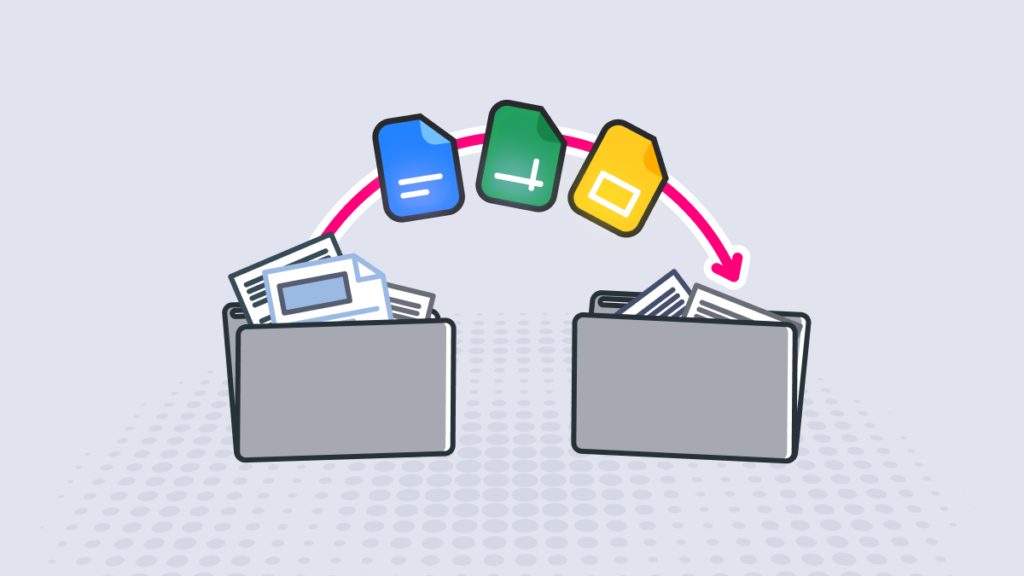
AI Office SDK can convert DOCX, XLSX, PPTX, and their legacy formats to PDF through Thinkfree Office’s dedicated conversion add-on, Doc2PDF. In an on-premise deployment, the editing environment runs entirely inside the customer’s own infrastructure, so this conversion step happens there too. Documents, version history, and access logs never leave the managed servers.
Thinkfree AI Office SDK offers the same document editing capabilities through two deployment models, Self-hosted and Hosted API. Self-hosted runs the document engine and editor inside an environment the customer directly controls, whether that’s an on-premise server or the customer’s own cloud account (Private Cloud). The physical processing of data happens inside that same infrastructure. Hosted API, by contrast, puts infrastructure operations and maintenance in Thinkfree’s hands, letting customers integrate the functionality quickly without managing servers themselves.
Choosing a deployment model is not simply a question of where documents are stored. It also determines where AI processing takes place. Self-hosted is the right choice for organizations in finance, healthcare, or government, where data leaving the organization can itself violate regulation. It also suits teams that already have an infrastructure group in place to run this kind of system. Hosted API is the more practical option for SaaS teams that need to add the feature quickly or don’t have staff to spare for running servers. For organizations that need to cut off external network access entirely, an air-gapped deployment goes a step further, keeping not just the document files but the AI processing itself inside that isolated network.
Regardless of which deployment model you choose, every feature above works the same way: DOCX table insertion and style preservation, XLSX formula and chart generation, PPTX generation, and DOCX-to-PDF conversion. Switching deployment models later carries little migration burden.
If you’re weighing which of the two models fits your needs, see this comparison page.
A company adopting AI-powered document editing really has two options: build it from scratch, or put an LLM on top of an already-proven engine. Building it yourself, from OOXML and ODF parsing to formatting preservation to real-time collaboration, consumes a significant amount of development resources. And every engineering hour invested there is time your team isn’t spending on your actual domain.
Thinkfree AI Office SDK turns that decision into something you can validate in weeks, not months. Whether you go with Self-hosted or Hosted API, you don’t need much time to plug in the features covered in this article and see how they actually behave. Reach out to find out which deployment model fits your organization and how far you can customize it.
Need help with your integration?
See the AI Office SDK in action.
Yes. Once the agent is connected to the document, the user just types a request into the AI Chat UI, such as “merge the third and fourth clauses.” The agent interprets the request and applies the edit directly to the document, without the user touching any menu or formatting option. The document is structured so that an AI agent can call its editing functions directly, which is what lets the user control the document through natural language.
Yes. A request such as “add a table here comparing our three pricing tiers” inserts a table at that point in the document, with each cell filled in based on the request. The user never has to specify rows, columns, or cell coordinates directly. The agent determines those details automatically.
No. The document model manages formatting independently of content, so replacing a sentence doesn’t strip away the style already applied to it. Users can review what the AI has changed and decide whether to accept it or undo it.
Yes. A request like “add a bar chart of monthly revenue next to this table” is enough to generate a working formula or a fully built chart. The user never has to write the formula or configure the chart settings by hand.
Yes. Users can paste notes, a webpage, or output from another tool into AI Chat and ask for it to be turned into slides. The AI agent interprets the request and restructures that content into a properly formatted presentation, adjusting layout and positioning automatically.
Yes. When the editing environment is built entirely inside your company’s own infrastructure, document conversion happens there as well, so files, version history, and access logs never leave that environment.
No. The same features can run inside your own infrastructure just as well as in a shared cloud environment. That matters especially for enterprise customers in finance, healthcare, and government, where data can’t leave the network regardless of how well the cloud version performs. The underlying technology is built to run in either environment without losing any functionality.
Like this post? Share with others!