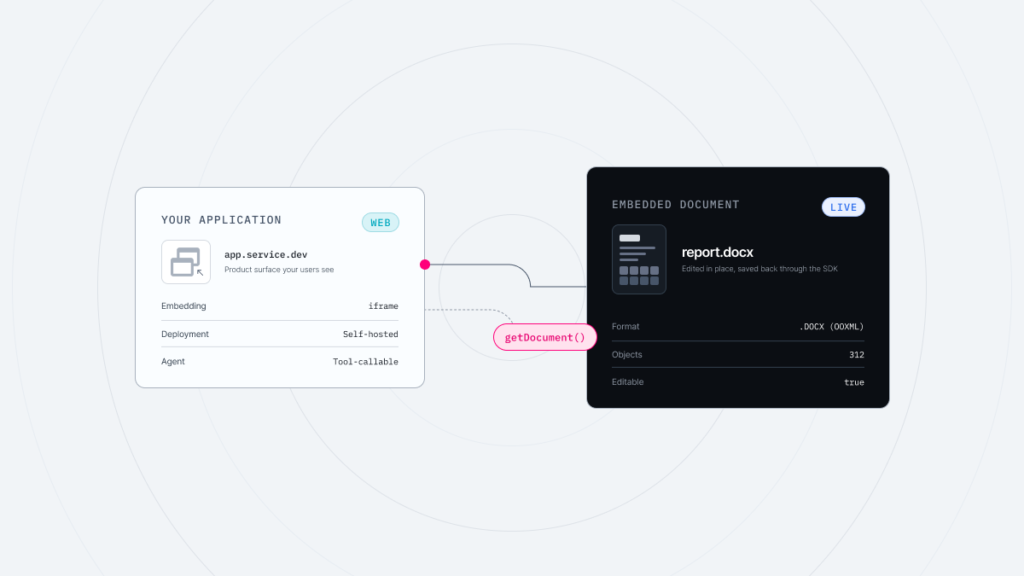

AI breaks DOCX formatting because most tools pull the whole document out as plain text and regenerate it from scratch. To avoid that, the fix is to limit what AI can touch to specific text and objects, backed by precise model mapping and lossless round-tripping on export. This article shows developers and product managers planning AI document editing features how Thinkfree Document Editor SDK handles this problem at the code level, and how canvases, fields, and protected areas are preserved as a result.
Today, humanity’s most important commitments all live inside absurdly tangled XML. And that’s probably not changing anytime soon.
Purchase orders worth millions of dollars, board resolutions, and M&A contracts all end up as a single Word file. Maybe that’s why, faced with AI that generates convincing text, people naturally assume: “If document editing is just text editing, wouldn’t it be enough to run an LLM?” “We could probably bolt AI-powered document editing onto our SaaS pretty easily.”
That is not an unreasonable idea. But if the document in question is a DOCX file, the situation is different. A DOCX file doesn’t actually contain a “document.” What it contains is a ZIP package full of scattered parts, relationship data connecting those parts to each other, and vendor extensions that never made it into any official spec.
So we need to remember that inside a DOCX, text is just content. What makes up the document is its coordinates and relationships. No matter how capable AI becomes, the moment a table border breaks, the manager’s sign-off is gone. A flowchart arrow ends up pointing at the wrong shape. A text box jumps off the page. Or a single paragraph gets touched by AI and the 14-point serif font mandated by court filing rules quietly turns into something else.
That missing “Approved” is exactly what happens to your customers who use your product. And preventing it becomes the job of the engineers and product owners building AI-based document editing in the first place.
There are two common approaches to editing DOCX with AI.
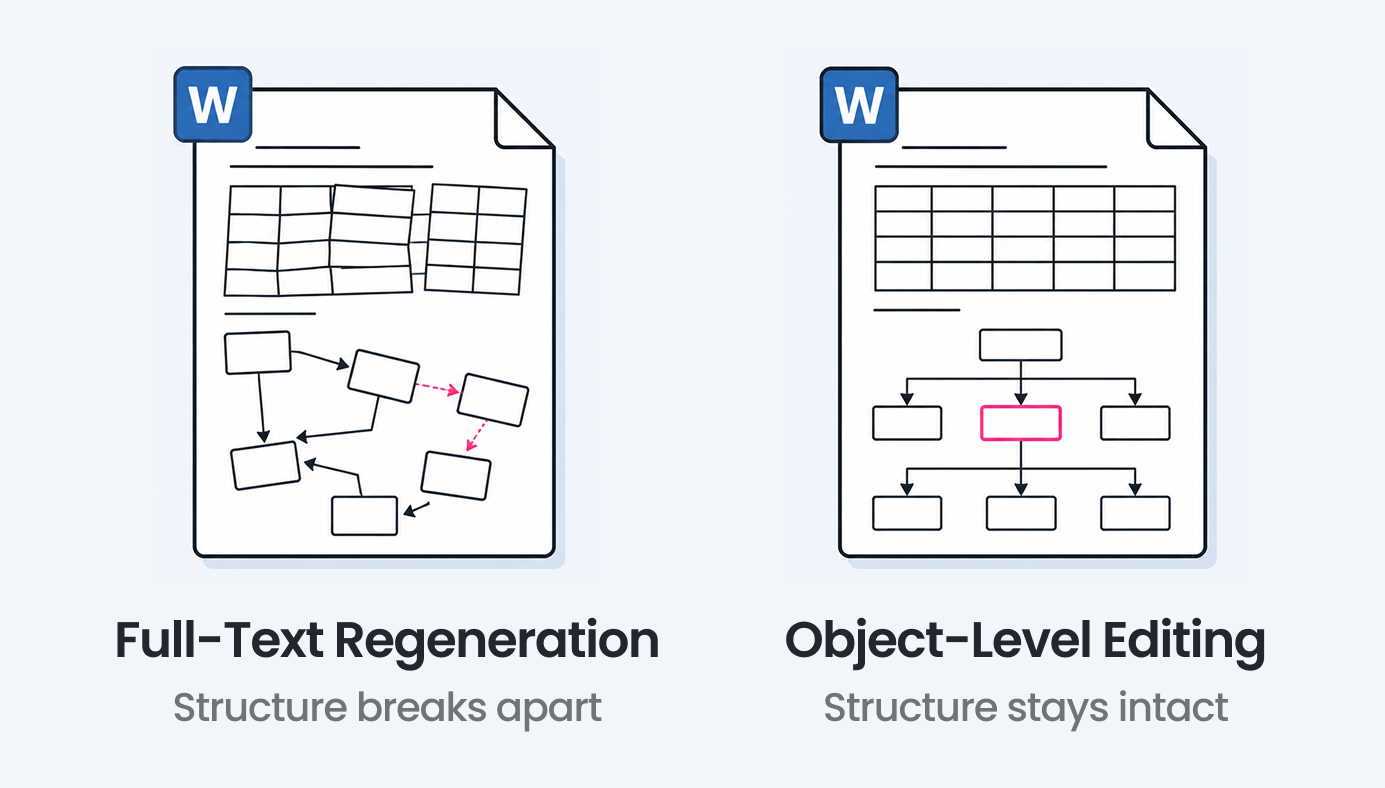
The first is full-text regeneration. The document is pulled out as plain text, an LLM rewrites it, and the whole result is inserted back. The problem is that the original objects and formatting are lost the moment the content becomes plain text. The other is object-level editing. Only the specific paragraphs, cells, or objects that need to change get touched, and the rest of the document structure is never disturbed.
On the surface, the second approach seems like the obvious choice. In practice, however, plenty of engineers stumble here. Preserving the DOCX structure as is sounds easy, but it is not.
For the document structure to stay intact while only specific objects change, three conditions all have to be met. If even one is missing, parts that were never touched may still be lost or rewritten.
OOXML has plenty of vendor extensions that live outside the official spec. Canvas coordinates and Microsoft Word-specific attributes like w14:textOutline are good examples. None of this is neatly gathered in one place. It is also scattered across different parts of the document, from the body and styles to settings and drawings. Supporting every one of these attributes requires serious engineering effort.
If the document engine does not reserve space for these elements in its internal model, the XML may still be read correctly, but the data can fail to fit the model and quietly disappear or get replaced by default values at save time. Put another way, what disappears is not the result of AI making a mistake. It is the result of a gap in model mapping. And closing that gap is how you solve the problem of AI touching DOCX files.
Thinkfree Document Editor SDK is designed as an integrated structure that combines a document processing engine that connects to enterprise AI infrastructure with a web-based office editor. It works across three distinct layers. What gets extracted, where it goes, and how it gets edited are each handled separately. That separation allows AI to work on a DOCX file without disrupting layout or formatting.
When the Document Editor SDK reads a document, the body.getText() and body.getStructure() methods distinguish text from document structure. The point is to extract only the text that requires processing, without touching formatting. Whether formatting is preserved is determined later, during insertion, based on what the user asked for.
No matter how well an AI-generated paragraph or table turns out, dropping it in at random conflicts with what the user actually wanted. AI output needs to land at a specific location in the original layout, say, below existing content. Without a clear insertion point, even a well-built object-level API can end up placing the result somewhere that doesn’t fit the context.
AI-generated content should be separated into structured object units, something like a “3 by 2 table,” rather than raw text. That lets it slot in naturally without breaking the paragraph, table, or spacing formatting already in the document. (body.insertParagraph(...), body.insertTable(3, 2))
When extraction, placement, and insertion all hold together like this, the body and any objects remain logically distinct even if a user selects both in one block. Select body text and a shape together, and only the plain body text is pulled out. Text and layout information inside shapes or text boxes get excluded before anything reaches the AI. In short, this is object-level API design doing exactly what it’s meant to do.
Microsoft Word’s drawing canvas structure, <wpc:wpc> and wordprocessingCanvas, handles the position of shapes and connectors as coordinates in EMU, or English Metric Units. Because the document import engine stores these shapes and connectors in its internal model as objects carrying those coordinates, any shape that isn’t part of the edit gets re-serialized in its original form through the import, edit, export cycle. This is model mapping doing exactly what it is supposed to.
Thinkfree’s AI document import engine stores Word-specific extended formatting attributes like rPr.textEffect and w14:textOutline in a slot separate from the text content itself. When AI only changes the content text, that formatting slot stays untouched and gets mapped back to its original attributes on export.
This is another example of model mapping in practice. If the canvas structure was about preserving position, this is about preserving formatting.
A Word field marks its start, separator, and end with <w:fldChar w:fldCharType="begin/separate/end">, and the instructions inside, like AUTHOR \* MERGEFORMAT, live in <w:instrText>.
MERGEFORMAT is a field switch that tells Word to carry the existing formatting (font, size, and so on) forward onto a new value whenever the field updates. By default, a field result inherits the formatting of the field code’s first character. With the MERGEFORMAT switch attached, it instead keeps whatever formatting was applied to the result right before the update.
Thinkfree Document Editor SDK correctly interprets this switch and preserves its behavior. If an author name field was set to bold, for instance, that bold formatting stays in place even after AI updates the document and changes the field’s value.
Reading the switch correctly is model mapping at work, recognizing what the instruction actually means. Carrying that formatting through every update is lossless round-tripping doing its job.
Microsoft Word’s restrict editing feature, commonly used in contracts and internal approval documents to lock legal clauses or fixed formatting while leaving only blanks open, is recorded in the document at two levels.
<w:documentProtection w:edit="readOnly" .../> in word/settings.xml<w:permStart> through <w:permEnd> markers inside the body, headers, and footersIn an AI editing workflow, it matters that a protected document never gets opened as if it were freely editable. Thinkfree Document Editor SDK recognizes the documentProtection attribute when a document loads and switches a protected document into viewer, or read-only, mode. This prevents an AI assistant from accidentally modifying a locked region in an important protected document.
Say a user asks, “Merge sections 3 and 4 of the contract.” Thinkfree Document Editor SDK combines the two sections through a smooth chain of replace and delete calls.
Here’s how the object manipulation APIs work. First, the target sections’ text is extracted, and AI generates a sentence that merges the two. Then replaceParagraph swaps the text of section 3 with the merged sentence, with the format-preservation option applied. deleteParagraph removes the old section 4 paragraph next. If the section numbers use OOXML’s numbered list style, the remaining section numbers shift up automatically once section 4 is gone.
All of this comes back to one principle we started with. Inside a DOCX, text is just content. Coordinates and relationships are what make up the document. Limit the editing scope to individual objects, and everything you didn’t touch can stay exactly as it was, leaving coordinates and relationships alone while only the content changes.
Whether to build such technology from scratch or use an already validated engine is a business decision between Build and Buy. (Read more: Why You Shouldn’t Build a Document Engine From Scratch) Either way, the same bar must be met: model mapping, lossless round-tripping, and an object-level API.
Thinkfree Document Editor SDK is built to meet exactly that bar. If you are considering how to safely preserve DOCX formatting during AI editing in an enterprise environment, you can find more detail below.
Learn more about Document Editor SDK.
Discuss your needs with our team.
Like this post? Share with others!