Imagine a legal AI SaaS product. A legal reviewer uploads a contract to its AI chat and asks, “Review this MSA against our vendor playbook.” The agent identifies 14 places that need to be revised.
But the problem comes next. Most workflows end up like this:
Even if the agent finds every issue, reviewers still lose time when applying those changes to the original contract is a hassle. The problem is not the model or the prompt. It is the document editing workflow.
AI-suggested changes should go straight into the existing document, where reviewers can check each one and apply only the changes they approve. This article shows how to build that workflow into your app with Thinkfree Document Editor SDK, so your AI agent edits the document in place and a human stays in the loop for every change.
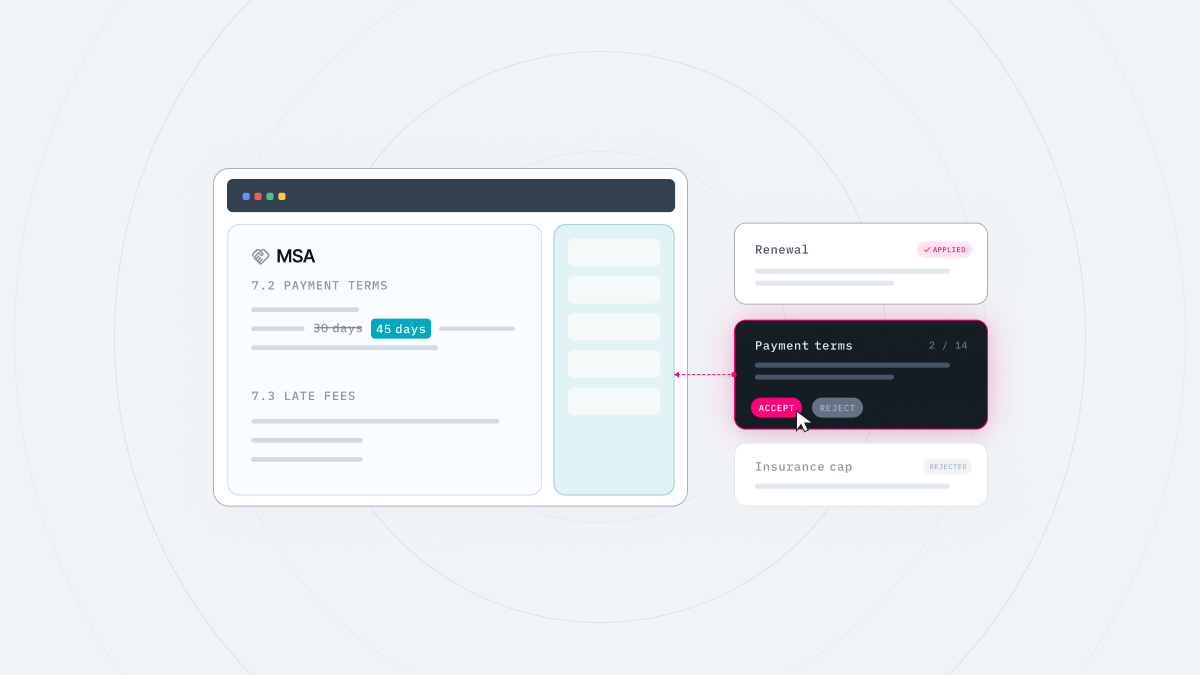
An example legal app built on Document Editor SDK
For an AI agent, understanding a document and editing it without losing its original formatting are two separate tasks. A common approach is to extract only the text from a document, send it to a model, and build a new file from the model’s rewritten text. Formatting information such as layout and styles is lost along the way. As a result, clause numbering can fall out of order and tables can break. (Related: How to Edit an Existing DOCX with AI Without Breaking Formatting)
The same problem occurs when you ask the AI to change only part of the original document. It still generates a new file instead of editing the existing one. This makes it difficult to see what has changed or to select and apply only the suggestions you need. In the end, the reviewer has to compare the original and the output line by line.
When the agent suggests edits in the chat, the reviewer has to carry them over into the actual document. Even when the original text is quoted, the suggestion is not linked to the corresponding location in the document. The reviewer ends up switching between the app and Word to find and fix each passage. They can choose which suggestions to keep, but applying them still requires manual work, leaving room for mistakes.
Both problems have the same cause: the agent works outside the document. The first approach recreates the document instead of editing it, while the second never touches the document at all.
For an agent to work inside a document, three things need to be in place.
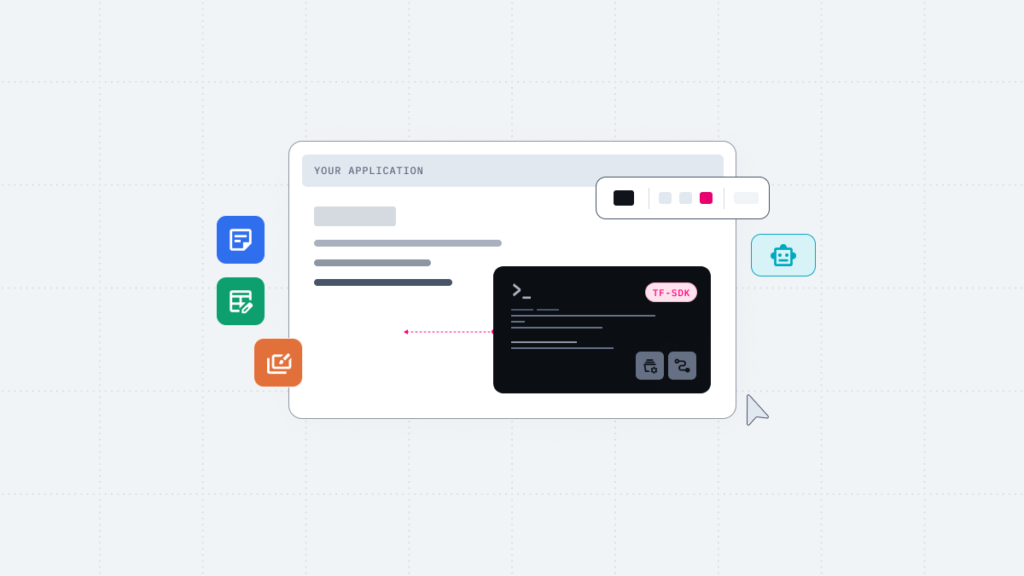
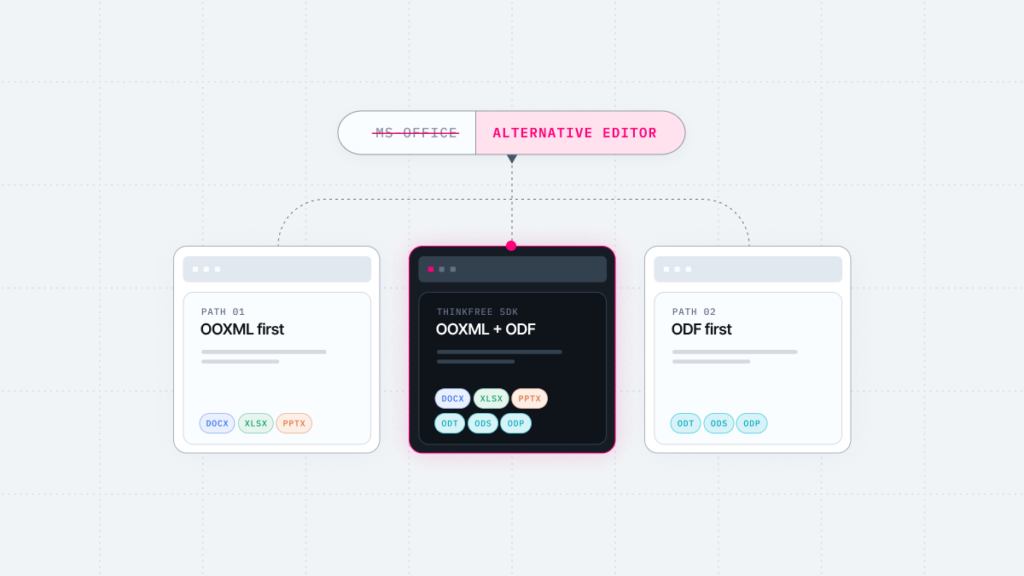
Thinkfree Document Editor SDK meets all three. You can embed an Office editor in your web app and let the agent edit the document open in that editor, directly at the object level.
getTools() in Document Editor SDK returns editing functions as tools an LLM can call. You can connect these tools to the model of your choice, including models from OpenAI, Anthropic, and Google.
const tools = await word.getTools({ include: ["insert_text"] });
name, description, inputSchema, and execute(args).include to pass only the tools your workflow needs.When the agent needs to change a time period in a contract clause, the LLM selects the appropriate tool to edit the relevant range in the document. The same edit can also be made directly using the object API, as shown below.
					const paragraph = await word.getParagraph(paragraphId);
const text = await paragraph.getText();
const from = text.indexOf("30 days");
const range = await paragraph.getRange(from, from + 7);
await range.insertText("45 days", { replace: true });
Because the edit targets a paragraph and a range within it, the existing formatting stays intact when the text changes. The edit happens in the same document the reviewer is viewing, so there is no separate copy to create or keep in sync.
Reviewers should be able to choose which of the agent’s proposed edits to approve. The simplest approach is to write “Always get the reviewer’s confirmation before editing” in the system prompt. But then approval depends on the model’s judgment. If the model ignores the instruction or is influenced by text inside the document, edits may not be applied as the reviewer intended.
To make sure only approved edits reach the document, keep approval in your app code, not in the model.
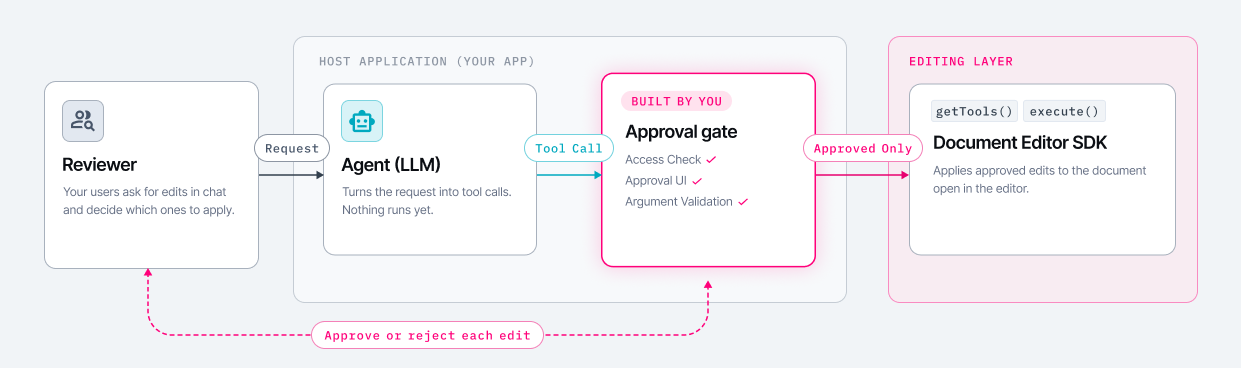
Your app passes the tools needed for the workflow to the agent using getTools({ include }). The agent interprets the reviewer’s request and decides which tools to use. The host app’s tool loop is what actually runs the calls made by the agent.
So you can add an approval gate to the host app’s tool execution function and decide which calls run. Here is what you can build into it.
To help reviewers scan AI suggestions and choose which ones to apply, split the process into two steps.
tool.execute() only for the suggestions the reviewer approved.After the edits are applied, the reviewer can refine the wording and finish up right in the editor.
Only the 12 approved edits reach the document
isError value returned by execute() so reviewers can quickly see which suggestions were not applied. Reviewers can trust the results only when what was applied matches what they approved.WORD_EDITOR / WORD_VIEWER). Set different permissions for each stage of the process, such as document creation, review requests, review, and final approval.A read-only review flow designed in the host app
Open the Playground to watch an AI agent edit a document and see how you can bring this workflow into your application.
Connect document tools to your agent.
Explore how legal apps can use the SDK.
Like this post? Share with others!