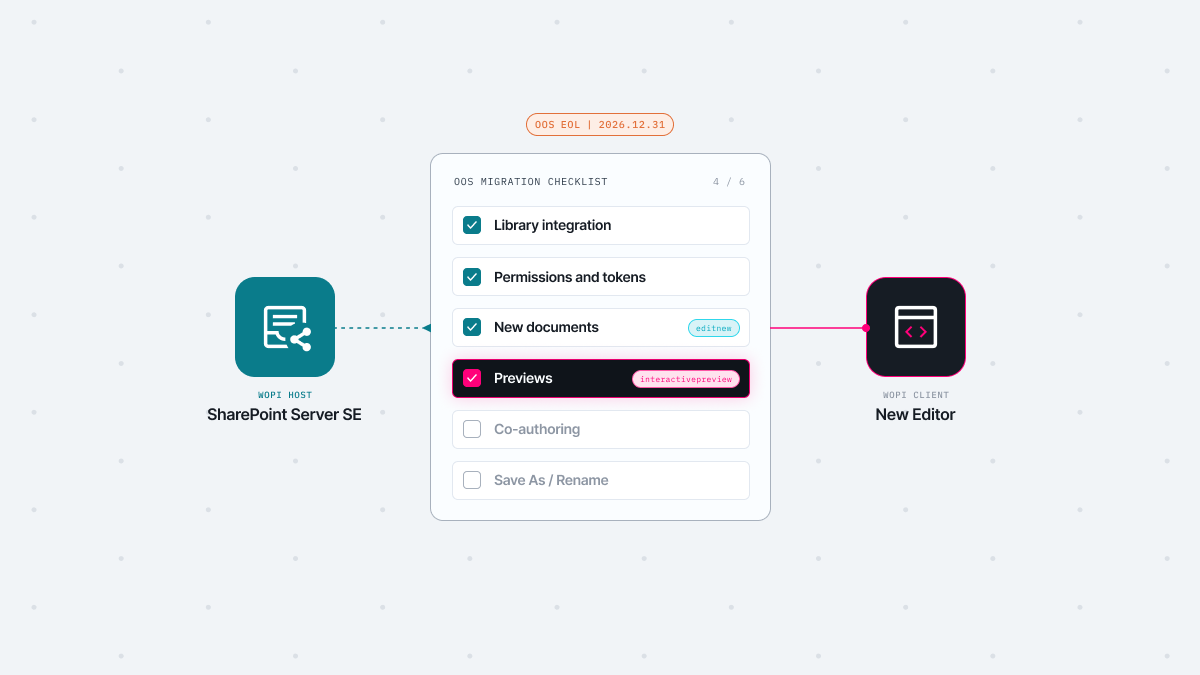
Support for Office Online Server (OOS) ends on December 31, 2026, while SharePoint Server Subscription Edition will remain supported until at least 2035. Many organizations that require an on-premises environment are looking for a replacement editor while retaining their existing SharePoint Server setup. One issue they may overlook is whether replacing the editor alone will preserve the document workflows they currently rely on.
WOPI support in a new editor does not automatically cover every document feature that SharePoint provided through Office Online Server. So what should you check before you replace the editor? This article outlines the scope of WOPI compatibility and the items to check during migration, based on the main document tasks in SharePoint Server.
SharePoint Server is the WOPI Host that stores document files and manages user permissions and version history. Office Online Server is the WOPI Client that displays and edits SharePoint documents in a browser. The two systems exchange document details and file content through the WOPI protocol.
Office Online Server runs on a dedicated Windows server separate from SharePoint and supports operating systems up to Windows Server 2022. As a result, even if you move SharePoint Server SE to Windows Server 2025, the OOS server has to stay on an earlier version of Windows Server.
When a user opens a DOCX, XLSX or PPTX file in a SharePoint document library, the following steps happen.
CheckFileInfo) and retrieves the file content (GetFile) from SharePoint to display it in the browser.Lock) and saves updated content back to SharePoint (PutFile).To fully replace OOS, a new editor must go beyond opening and saving files and support the other capabilities users rely on (read-only view, new document creation, document previews, etc.).
Supporting the WOPI protocol is separate from supporting every document feature in SharePoint. Because SharePoint manages all files, permissions, and version history, replacing Office Online Server does not require moving your documents to another repository. Rendering and editing files, however, is the client’s job.
When you evaluate OOS alternatives, check WOPI support along with the WOPI actions and operations you actually need, and whether the new editor can deliver your existing SharePoint features.
Supporting WOPI means a document repository and an editor can exchange file details and content in a standardized way, and nothing more.
You can verify whether a new editor supports a SharePoint feature in two steps.
A WOPI Action defines a type of document task that an editor can handle. The editor lists its supported actions in the discovery XML, and SharePoint makes the corresponding options available in its interface. Even if an editor can open and save files, SharePoint features that rely on unregistered actions either do not appear or fall back to a basic view.
WOPI Action | Role | Related Feature |
|---|---|---|
view | Displays a document in read-only mode | View documents |
edit | Opens an existing document in edit mode | Edit documents |
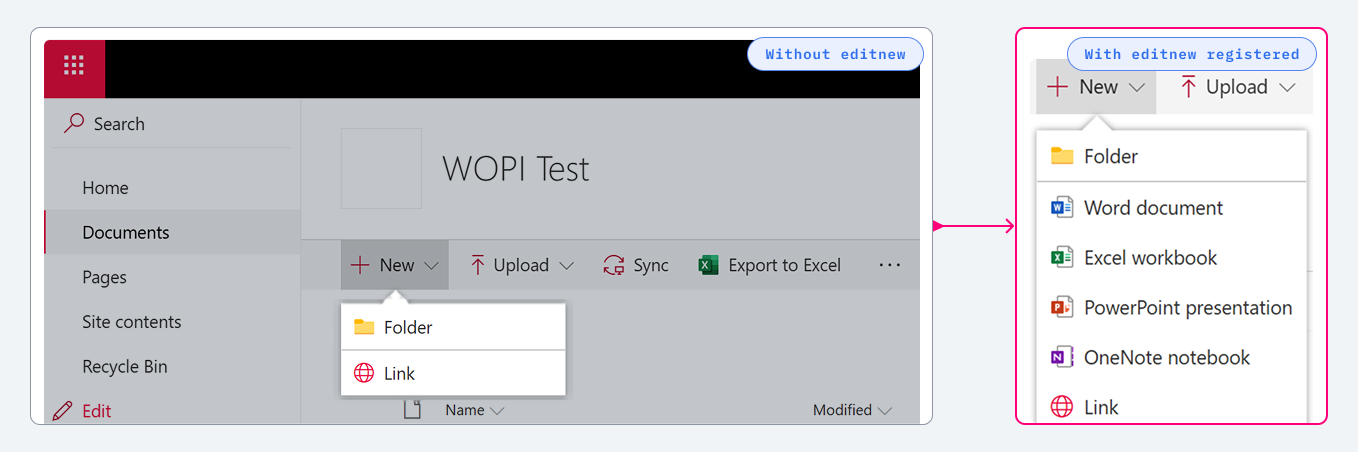
editnew | Creates a new document and opens it in edit mode | Create new Word, Excel and PowerPoint documents |
interactivepreview | Provides an interactive preview of a document | Preview documents |
If an editor supports view and edit but not editnew, users will not see the corresponding document creation options in the New menu of a SharePoint document library.
An operation is an individual request that SharePoint and the editor exchange to carry out an action.
Operation | Role | Related Feature |
|---|---|---|
CheckFileInfo | Returns file properties and user permissions | Starting point of every task |
GetFile | Retrieves the file | Opening documents |
PutFile | Saves the file | Saving changes, filling a new document with a template |
Lock, RefreshLock, Unlock | Manages file locks during editing | Concurrent access control |
PutRelativeFile | Saves a new file based on an existing one | Save As |
RenameFile | Renames the file | Renaming files |
Not every action requires every operation. For example, viewing a document needs only CheckFileInfo and GetFile, while editing also needs operations for updating files and managing locks.
To create a new Word document, the editor must register the editnew action so that the option appears in the New menu. The editor must then fill the empty file with a template through PutFile before it can be opened. Save As follows a similar principle. Even if the menu option is visible, SharePoint must successfully process a PutRelativeFile request to create the new file.
So when evaluating a new WOPI-compatible editor, identify the actions and operations required by the SharePoint features your organization uses, and verify that the editor supports them.
When you replace Office Online Server with a new WOPI editor, basic file opening, editing, and saving may work through the standard integration. However, these functions do not guarantee that other SharePoint features will continue to work. Many of the features below require separate support from the WOPI client. If that support is missing, related menus or panels may simply disappear without an error message, making the gaps difficult to identify until after migration.
Removing OOS without a replacement editor means users can no longer open and edit documents in a browser. Users on shared PCs or thin clients without desktop Office applications such as Word, Excel, or PowerPoint will lose this browser-based way to work with documents.
When choosing an OOS alternative, look beyond basic document viewing. Check whether it supports both editing and read-only modes, and which editing features are available for each file format.
SharePoint Server has used OOS to provide previews of DOCX, XLSX, PPTX, and PDF files. The preview experience varies depending on the SharePoint UI and feature. For example, in the classic UI, hovering over a search result opens a preview panel. The modern UI does not provide the same preview for search results. SharePoint relies on the WOPI client to render these previews, so they may not be available if the new editor does not support the required preview actions.
Before deploying a new editor, check how existing preview will be handled. Features that users rely on frequently, such as document library preview panes and search result previews, can affect usability and should be tested separately.
SharePoint Server has supported browser-based co-authoring of DOCX, XLSX and PPTX files through OOS. Removing OOS also removes this browser-based co-authoring capability.
Users can still open files stored in SharePoint Server in desktop applications and collaborate, although support varies by application and file format. Excel, for example, does not support co-authoring in its desktop application for workbooks stored on SharePoint Server. Relying on desktop applications therefore does not fully restore the co-authoring experience.
Office Online Server can also support services beyond SharePoint, including attachment previews in Exchange Server and Excel workbook hosting in Power BI Report Server. These integrations are also affected by the retirement. You can run Get-OfficeWebAppsHost on the OOS server to list the host domains authorized to use it.
Access tokens issued by SharePoint expire after a defined period. For long editing sessions, it is important to know how the editor handles token expiration. Check whether the new editor detects an expired token and provides a way to reconnect to the document.
Removing OOS without first checking the new editor’s capabilities can disrupt workflows ranging from document editing to collaboration. Test the following areas in a controlled environment before migration.
A successful OOS migration depends on how well the new editor supports the document workflows your organization relies on in SharePoint.
Thinkfree Document Editor SDK is a browser-based document editing solution that lets you connect Thinkfree Office to SharePoint as a WOPI client. It can be deployed as a Docker package in private cloud and on-premises environments. This allows organizations to provide browser-based viewing and editing of DOCX, XLSX and PPTX files while retaining their existing SharePoint Server infrastructure and document storage.
SharePoint interface | Required WOPI action | Expected behavior if the action is not registered | Document Editor SDK* |
|---|---|---|---|
Creating new DOCX/XLSX/PPTX files from the New menu | editnew | The corresponding menu options do not appear | Supported |
Document library preview pane | interactivepreview | The preview pane does not appear | Supported |
File Viewer web part on SharePoint pages | interactivepreview, embedview | The preview falls back to standard view | Supported |
Classic UI search result preview | interactivepreview | The preview panel remains empty | Supported |
*Verified in internal testing with SharePoint Server Subscription Edition (available in the upcoming release).
Review your SharePoint environment and explore your options for replacing OOS.
Like this post? Share with others!