
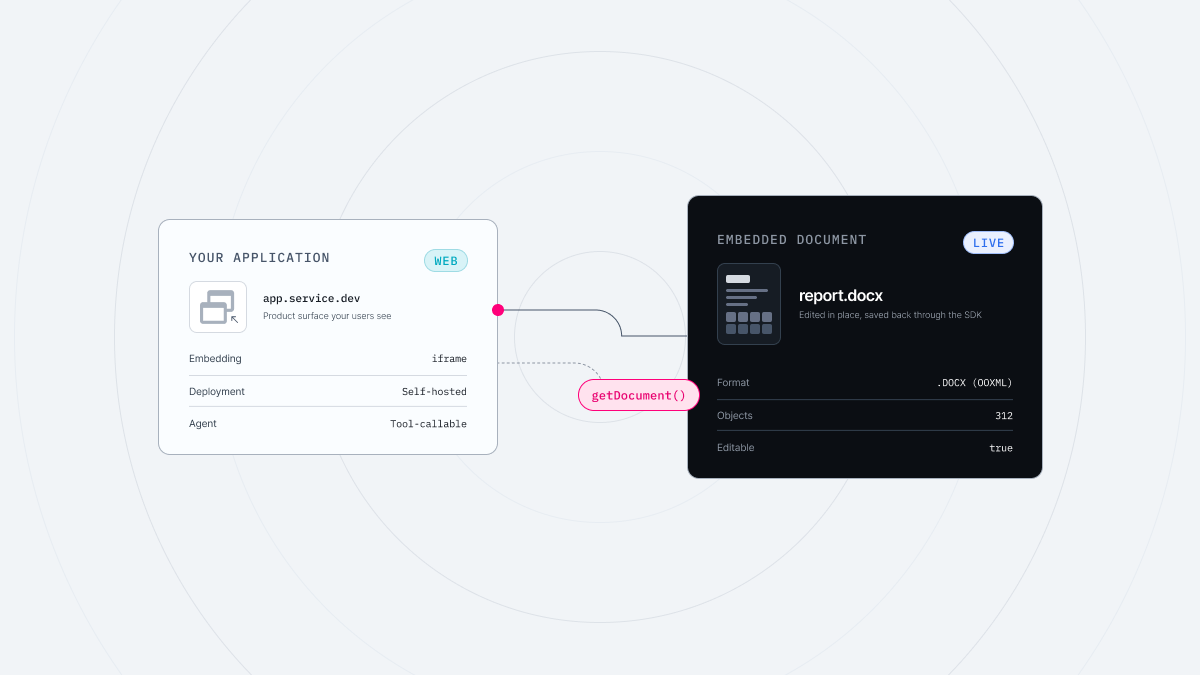
When adding document editing to an existing SaaS product or business application, the first step is to decide how documents will connect to your service.
There are several ways to implement document editing. These differences go beyond feature scope. They also affect where documents are processed, how the editor is embedded, how the API is built, how AI is integrated, and how the solution is deployed.
This article explains how Thinkfree Document Editor SDK connects document editing to applications and compares it with office suites, other document SDKs, and Office add-ins.
Thinkfree Document Editor SDK is designed to control word processor, spreadsheet, and presentation documents through objects and methods.
The API catalog included with the SDK documents the objects and methods available in each module. The current build includes:
Editor | Module | API catalog |
|---|---|---|
Word Processor | word | 14 types / 260 methods |
Spreadsheet | cell | 7 types / 173 methods |
Presentation | show | 10 types / 586 methods |
Note: Current as of September 30, 2026
Range. Your application can then format or replace the text, or perform other operations on the range.
					import { Office } from "@thinkfree.dev/tfo-sdk";

// The iframe already loads a Word document.
const iframe = document.querySelector("#office-frame");
const word = Office.word(iframe);
await word.whenReady();

const doc = word.getDocument();
const body = await doc.getBody();

// Match the whole word, ignoring case.
const hits = await body.search("review", { wholeWord: true });

for (const range of hits) {
  await range.setTextFormat({
    highlightColor: "#FFFF00",
    bold: true,
  });
}
In other words, your application can target structured objects in a document instead of treating it as a plain file or string. You can also:
By chaining object controls, you can build a document review workflow. For example, a contract review service can find a clause, attach a comment, replace the wording, and record the edit as a tracked change.
					const doc = word.getDocument();
await doc.setChangeTracking(true);

const body = await doc.getBody();
const clauses = await body.search("Limitation of Liability");

// Work backwards so replacements do not shift earlier matches
for (const clause of clauses.reverse()) {
  await clause.insertComment("Please review the liability cap.");
  await clause.insertText("Liability Cap", { replace: true });
}

// Retrieve all current tracked changes
const changes = await doc.getChangeTrackings();
for (const change of changes) {
  await change.accept();
}

await doc.setChangeTracking(false);
When change tracking is on, edits remain as tracked entries. Your application can retrieve them with getChangeTrackings() and accept or reject them in bulk, either across the whole document or within a range. Each call reports what it processed, so your application can surface the result to a reviewer.
Sheets, ranges, charts, tables, and filters can be handled as objects. For example, you can specify a range and read or write its values with getValues() and setValues().
					import { Office } from "@thinkfree.dev/tfo-sdk";

const iframe = document.querySelector("#office-frame");
const cell = Office.cell(iframe);
await cell.whenReady();

const workbook = cell.getWorkbook();
const sheet = await workbook.getWorksheet(0);
const range = sheet.getRange("A1:B2");

await range.setValues([
  ["Product", "Revenue"],
  ["Office", 125000],
]);
getRange() takes A1 addresses such as A1:B2. you can build a report by writing your application’s aggregated data to a sheet, adding a table with addTable(), and adding a chart with addChart(). getCellContents() returns the raw value, displayed value, and formula of every cell in the range as a 2D array for further processing.Slides and objects on them, including shapes, images, lines, groups, charts, tables, and comments, are available as objects. When you insert or move a shape, you can set its x and y position, width, and height in code. This lets you find and modify specific elements in your application.
					import { Office, ShapePreset } from "@thinkfree.dev/tfo-sdk";

const iframe = document.querySelector("#office-frame");
const show = Office.show(iframe);
await show.whenReady();

const slides = await show.getDocument().getSlides();

const shape = await slides[0].insertShape(ShapePreset.RECT, {
  x: 100, y: 100, width: 300, height: 120,
});

await shape.insertText("Quarterly update");
duplicateSlide(), replacing the client name and figures with replaceText(), and filling in the speaker notes with setSlideNoteText(). This keeps the existing slide layout while changing only the content you need. Area | Word Processor | Spreadsheet | Presentation |
|---|---|---|---|
Structure | Body, sections, paragraphs, ranges | Workbook, worksheets, ranges | Slides, shapes, groups |
Tables | Row and column operations, cell merge and split, column width | Table creation, options, resizing | Table insertion, cell editing, styles |
Formatting | Character and paragraph formatting, style application, borders, tabs | Fonts, fills, alignment, number formats, conditional formatting | Fills, lines, effects, paragraph formatting |
Layout | Page size, margins, columns, headers and footers, page numbers | Freeze panes, row and column visibility, gridlines | Layouts, color themes, transition effects |
Data | Search and bulk replace, accepting and rejecting tracked changes, bookmarks, hyperlinks | Formulas, sorting, filters, data validation, defined names | Slide notes, comments and replies, hyperlinks |
Visual Elements | Shapes, images, charts, text boxes | Chart creation and control of axes, legends, and data ranges | Shapes, images, charts, text boxes |
These document objects and editing functions can be connected not only to your application code but also to an AI agent’s tool calling.
For an AI agent to perform document work, the editor’s functions need to be exposed as callable tools. Editor AI SDK runs on top of Editor SDK, so you first need an environment where Editor SDK can open and control the document.
Interface | Use case | Entry point |
|---|---|---|
Document handles | When application code needs to directly control document objects | getDocument() |
Document tools | When an agent needs to call document editing capabilities as tools | getTools() |
Thinkfree Document Editor SDK provides different interfaces for different use cases. Both work on the same editor and document. You can use them together, so your application code and an agent can work on the same document.
Among these interfaces, Document tools provide the entry point for agent integration. Each tool returned by getTools() includes its description and required input. You can connect these tools to an LLM or agent framework for document editing.
User → Chat UI → LLM or Relay → Tool Call → Editor SDK → Open Document
Each tool consists of name, description, inputSchema, and execute(args). The model does not modify the document file directly. It decides which tool to call and what input to pass based on the tool names and JSON schemas it receives.
The tool’s execution logic and Editor SDK make the actual changes to the document. This structure is not tied to a specific LLM, so you can connect it to any LLM platform that supports tool calling or your own AI infrastructure.
LLM → Tool proposal → Application policy → Authorization → Editor SDK → Document
In other words, Editor AI SDK follows a structure in which AI agents call only the document editing capabilities that the application has explicitly made available as tools, rather than handling the document file directly.
When you adopt a document editing SDK, you also need to check where it runs and how it handles document data.
Thinkfree Document Editor SDK runs in a self-hosted environment, so document data stays on your own infrastructure. A Thinkfree-managed Cloud Office is planned for release later in 2026 for teams that would rather not operate the runtime themselves.
Self-hosted Office | Cloud Office (planned in 2026) | |
|---|---|---|
Operator | Customer | Thinkfree |
Runtime environment | Own infrastructure | Thinkfree-managed environment |
Document source | Own storage | Upload or integration with supported external storage |
Note: Product details come from each vendor’s public documentation and release notes. Scope and licensing vary by product line, version, and deployment method, so check the vendor’s latest documentation before you decide.
Several products offer document editing capabilities, but they differ in purpose and execution model.
These categories overlap. Thinkfree provides a full Office editing environment like the suites in the first group, and exposes the open document as objects and methods your application can call. Three questions usually decide the choice, and the sections below work through each one.
First, check whether your users need to edit documents inside your application, and which file types they open.
The products above cover different parts of the DOCX, XLSX, and PPTX range, so weigh that coverage against the file types your users actually open.
Products that offer AI-based document editing differ in how much of the tool layer they hand you.
Before letting an AI agent handle documents, check whether the tools you need are built into the SDK, and where the approval step lives in your workflow.
Check where the document is processed, what format it is stored in, and how it connects to your existing storage and authentication.
Thinkfree Document Editor SDK is worth considering if you want to integrate Word Processor, Spreadsheet, and Presentation editing into an existing SaaS or business application and use document functions from your application code and an AI agent.
Consider Thinkfree Document Editor SDK if you have any of the following requirements:
Criteria | Question to ask | Current support |
|---|---|---|
Document editing | Can you control DOCX, XLSX, and PPTX together? | Supported |
Object APIs | Can you read and write at the document object level? | Supported |
Agent-readiness | Can document functions be exposed as structured tools for an agent? | Supported |
LLM dependency | Is the solution tied to a specific LLM? | Developer chooses and connects the provider |
Embedding | How is the editor connected? | iframe-based Editor SDK |
Deployment model | Where does the Office runtime run? | Self-hosted, or Cloud Office (2026 H2) |
Storage integration | Can you connect existing storage? | S3, WebDAV, WOPI, and a documented HTTP protocol for custom storage |
Real-time collaboration | Are co-editing and collaboration features supported? | Supported |
Document editing technology is hard to compare within a single product category. The right choice depends on whether users need direct editing, whether your application needs to control documents in code, whether you need to connect an AI agent, and where you plan to run it.
Thinkfree Document Editor SDK connects these requirements to your application and lets you choose the interface and deployment method that fit your use case. Try it yourself and check the implementation details.
Try the SDK in your browser.
Read the API reference and guides.
Like this post? Share with others!